Reduce image file size while keeping PNG or JPG format
Keep PNG as PNG and JPG as JPG while reducing file size. You can set an MB limit per image; the tool reduces pixel dimensions if needed and reports when it cannot meet the limit.
SheetSum team · Features checked: October 2, 2026
Follow these steps
Choose images
Select up to 30 JPG/JPEG, PNG, static WebP or uncompressed 24/32-bit BMP files. The practice file is a fictional profile illustration.
Choose a compression method
Choose Standard compression, Reduce to half or less, or Fit an MB limit. The latter two may reduce pixel dimensions while preserving the original format.
Check the limit or advanced settings
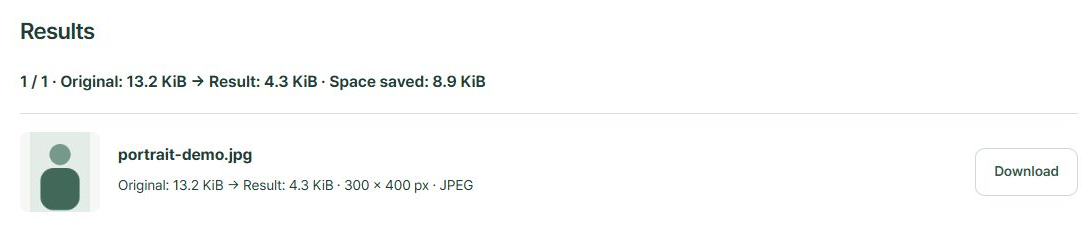
For an MB limit, enter the maximum per file. The sample JPG uses standard compression, 80% quality and a 300px maximum width. A width of 0 keeps pixel dimensions. Format changes only when selected explicitly.
Compress and download
Select Compress selected images. Compare sizes per file, download individual results, or prepare a ZIP and download all successful results.
Before you start
- Up to 30 files, about 26.2 MB combined (26,214,400 bytes), and 13 million pixels per image.
- Default PNG compression is lossless and preserves pixels and transparency. JPG/WebP quality settings do not affect PNG. The original is kept if no smaller result is found.
- Enter an MB limit from 0.01 to 25 per file (1 MB = 1,000,000 bytes). If the current format cannot meet it, the tool reports failure. Dimensions and detail may change.
- HEIC and animated images are not supported by this tool.
Files and entries are processed in your browser.
Common questions
Does 80% quality mean a 20% smaller file?
No. It is an encoding quality setting, not a file size reduction percentage. Image content, dimensions and the browser affect the result.
Which setting should I change first?
Try standard compression on one image first. If you need more reduction, choose half-size or an MB limit. Avoid those dimension-reducing modes when pixel dimensions must stay unchanged.