Crop a screenshot before you send it
If a screenshot includes a chat list, notifications, or blank space, select only the part you need with a finger or mouse and save a new image. Your original file stays unchanged.
SheetSum team · Screens checked: September 23, 2026
Follow these steps
Choose the screenshot
Choose up to 30 JPG, PNG, or WebP screenshots. Files are processed in your browser and are not uploaded.
Switch to a custom crop
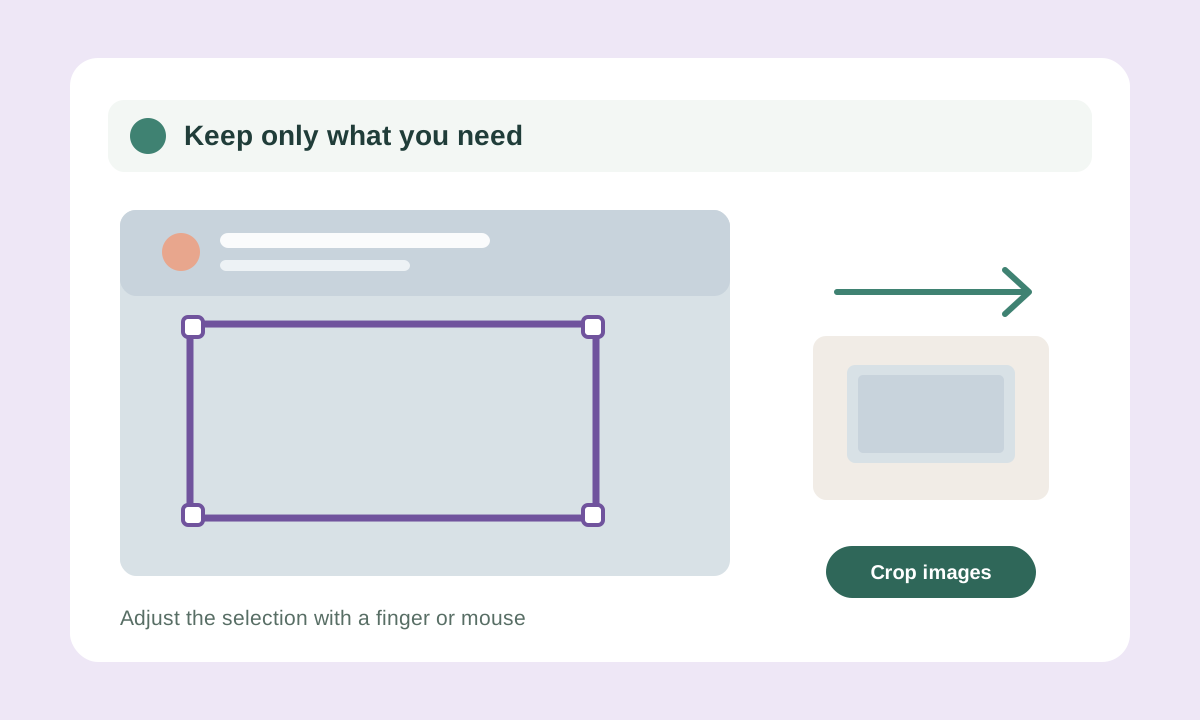
Under Crop area, choose Custom. A selection box appears over the preview.
Draw the part to keep
Draw a new box or move it with your finger or mouse. Drag a corner to resize it. For keyboard work, use the Left, Top, Width, and Height fields below the preview.
Check and save the result
Select Crop images, then check that the preview contains only what you intend to share. Download files one by one, or make a ZIP when you have several.
Before you start
- Use up to 30 images, 25 MiB total, and 13 megapixels per image.
- When you choose several images, the same percentage crop is applied to every file. Crop screenshots with different layouts one at a time.
- Cropping reduces what remains on screen, but it does not automatically hide private details still inside the crop. Check the finished image before sharing it.
Files and entries are processed in your browser.
Common questions
Will this change my original screenshot?
No. It creates a new file from the selected area and leaves the original file unchanged.
How do I hide a name or email address that remains?
If cropping cannot remove it, use the Image mosaic tool on a separate copy and inspect the result before sharing.